---
title: TurboPass Insurance Monitoring
description: A consumer credentialed connection to a customer's insurance policy that provides real-time policy updates on changes, cancellations, expirations and lapses. Primarily used for lienholders that are servicing loans like BHPH/In House financing dealers and lenders.
---
[Skip to content](https://knowledgebase.turbopassreport.com/en/knowledge-base/turbopass-insurance-monitoring#main-content)
English
Show submenu for translations

- [Log in](https://app.turbopasspoi.com/turbopasses)
- [API Documentation](https://app.turbopasspoi.com/docs/index.html)
- [Submit a Ticket](https://app.turbopasspoi.com/help)
Open main navigation
Close main navigation
- [Log in](https://app.turbopasspoi.com/turbopasses)
- [API Documentation](https://app.turbopasspoi.com/docs/index.html)
- [Submit a Ticket](https://app.turbopasspoi.com/help)
- English
Show submenu for translations
How can we help you?
- There are no suggestions because the search field is empty.
1. [TurboPass Knowledge Base](https://knowledgebase.turbopassreport.com/en/knowledge-base?hsLang=en)
2. [Features](https://knowledgebase.turbopassreport.com/en/knowledge-base/features?hsLang=en)
# TurboPass Insurance Monitoring
## Learn how to receive real-time notifications of changes, lapses and cancellations to customers Insurance policies
### **⚡TurboPass Insurance Monitoring⚡**
**Get notified within 24 hours of any account or policy changes, cancellations, or lapses. That's 14x faster than competing solutions!**
- **CUT OUT SNAIL MAIL🐌**
- **REDUCE LOSSES FROM UNINSURED VEHICLE DAMAMGES❌**
- **STOP MANUALLY TRACKING POLICY STATUSES⌛**
All TurboPass dashboard subscriptions include 5 free monitored policies per month. Every connected account after the 5th will be charged as a consumer overage associated to your subscription.
If you are interested in monitoring more than 10+ accounts, please fill out**[THIS FORM](https://1qarr.share.hsforms.com/2e2Kaq4RrSGqRP2pQeAuqag)**
**[SCHEDULE A DEMO](https://meetings.hubspot.com/ethan-jarman/turbopass-insurance-monitoring-demo)**
### Watch the 'How to' Video Below
00:00: This demo showcases, how turbopass streamlines Insurance monitoring and invitation management.
00:01: Once logged into your Turbopass dashboard, navigate to the Insurance Monitoring section at the top of your screen
00:08: To monitor a new customer, click Invite to Connect
00:12: Enter your customer's information and click review and send on the bottom right
00:17: Review the information and click Send Invite
00:21: Your customer has been sent a link. You can always reach out to the customer to ensure they complete the process.
00:27: All Insurance monitoring invitations will display on your regular turbo, passes screen.
00:34: The customer will find their insurance provider and log in with their username and password.
00:40: Once the customer has connected, go into your monitoring dashboard and select view policy to view the policy information
00:47: Information about the policy include the leanholder, drivers, vehicles, deductibles, premiums and more
00:56: On the left side you can view all historical policy information since the customer connected the account.
01:01: You can Disable monitoring for the policy on the left as well.
01:06: All Users that need to receive notifications for policy updates must navigate to the user edit screen and turn on the Enable Monitoring Notification toggle
01:16: When any change or update occurs to the connected policy or account, you will receive an email notification prompting you to login and see what has changed
01:26: Once directed to the policy view, you can see the current information after the change occurred
01:32: On your Monitoring dashboard, the latest status will indicate a change was made to either the account or policy
01:39: If you have any questions, please reach out to our product leed.
01:43: Thanks for watching
### Disabling / Enabling Monitoring
To disable policies, simply click the 3 dots next to the 'View Policy' button in your dashboard and click 'Disable Monitoring' 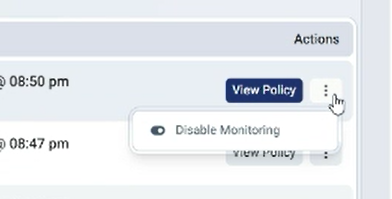
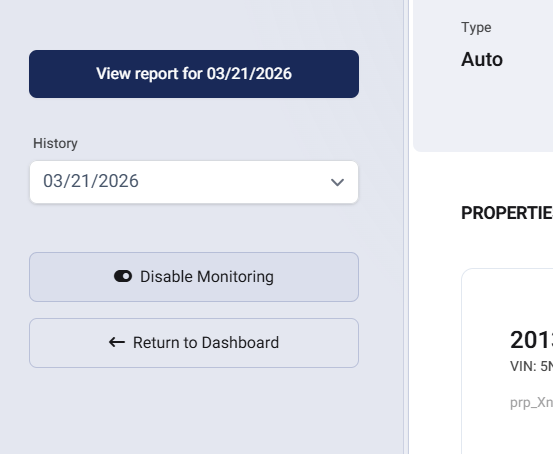
You can also disable monitoring inside of the 'View Policy' screen on the left side bar
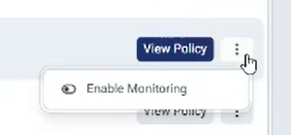
If a customer connected their insurance account to TurboPass and was not turned on for monitoring. You can always go to the same place to 'Enable Monitoring'
### Enabling Monitoring Notifications
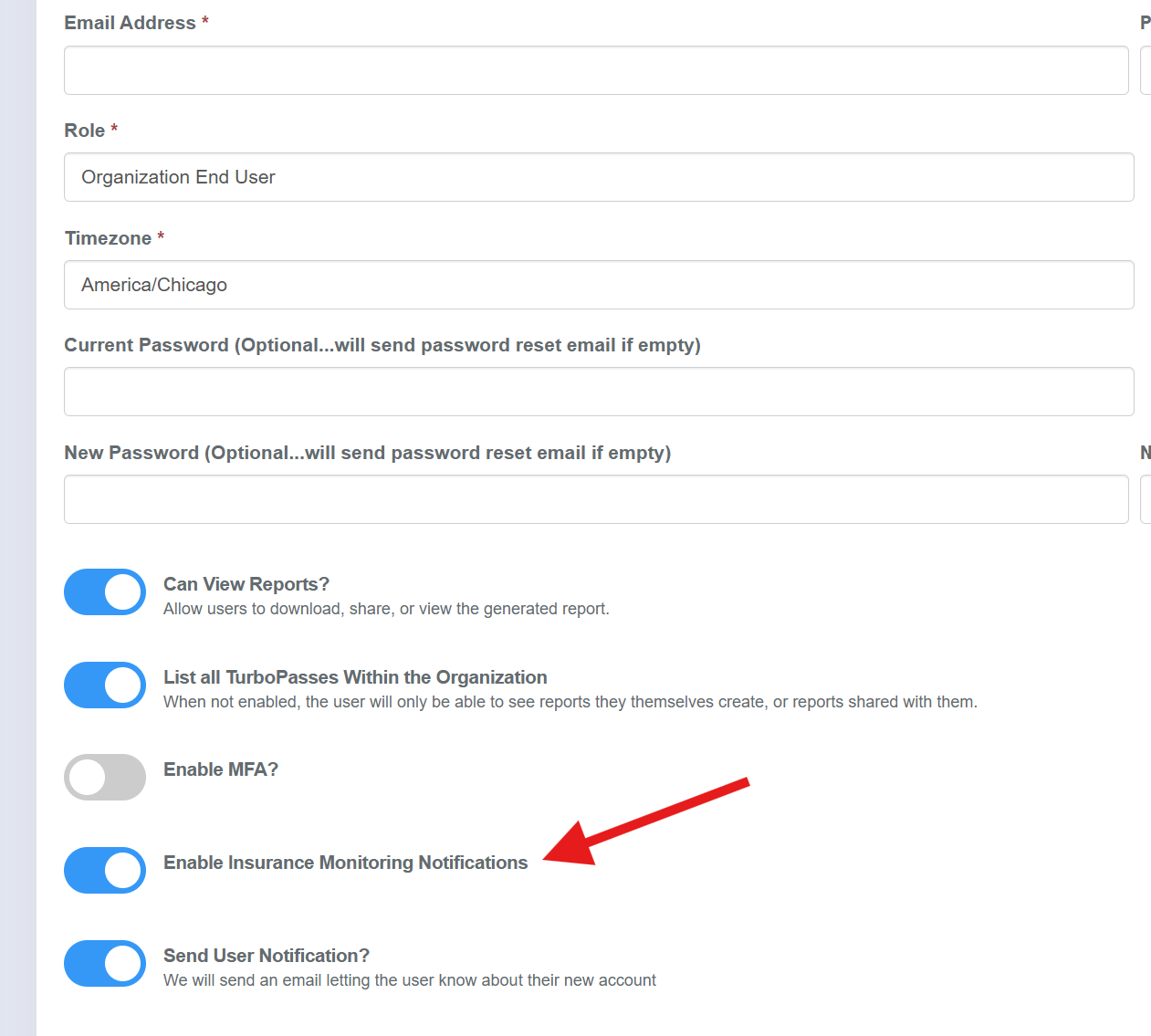
In order for users to receive policy update emails, the user permission 'Enable Insurance Monitoring Notifications' must be turned on. Users will not receive policy update emails if this permission is turned off.
- [Technical Issues](https://knowledgebase.turbopassreport.com/en/knowledge-base/technical-issues?hsLang=en)
- [TurboPass Education Materials](https://knowledgebase.turbopassreport.com/en/knowledge-base/turbopass-education-materials?hsLang=en#main-content)
- [DealerCenter Integration](https://knowledgebase.turbopassreport.com/en/knowledge-base/turbopass-education-materials?hsLang=en#dealercenter-integration)
- [Consumers](https://knowledgebase.turbopassreport.com/en/knowledge-base/turbopass-education-materials?hsLang=en#consumers)
- [General](https://knowledgebase.turbopassreport.com/en/knowledge-base/turbopass-education-materials?hsLang=en#general)
- [Dashboard](https://knowledgebase.turbopassreport.com/en/knowledge-base/turbopass-education-materials?hsLang=en#dashboard)
- [Features](https://knowledgebase.turbopassreport.com/en/knowledge-base/features?hsLang=en)
- [Log in](https://app.turbopasspoi.com/turbopasses)
- [API Documentation](https://app.turbopasspoi.com/docs/index.html)
- [Submit a Ticket](https://app.turbopasspoi.com/help)
[](https://www.turbopassreport.com/?hsLang=en)
[12274 Bandera Rd Suite 218 • Helotes, TX 78023](https://goo.gl/maps/XutGFNXTZRr679Ms7)
Copyright © 2025, Notice: